Manager guide
As a manager you do everything an employee does — plus you're stage one of every request your team raises. Clear your queue quickly and the whole team keeps moving.
- You approve
- leave · WFH · overtime · regularization
- Scope
- your direct reports
Manager = employee + your team
Your sidebar has everything an employee has (check in, apply leave, payslips — see the Employee guide), and adds team surfaces: approval queues, team balances, and delegations. Your dashboard surfaces what needs you.
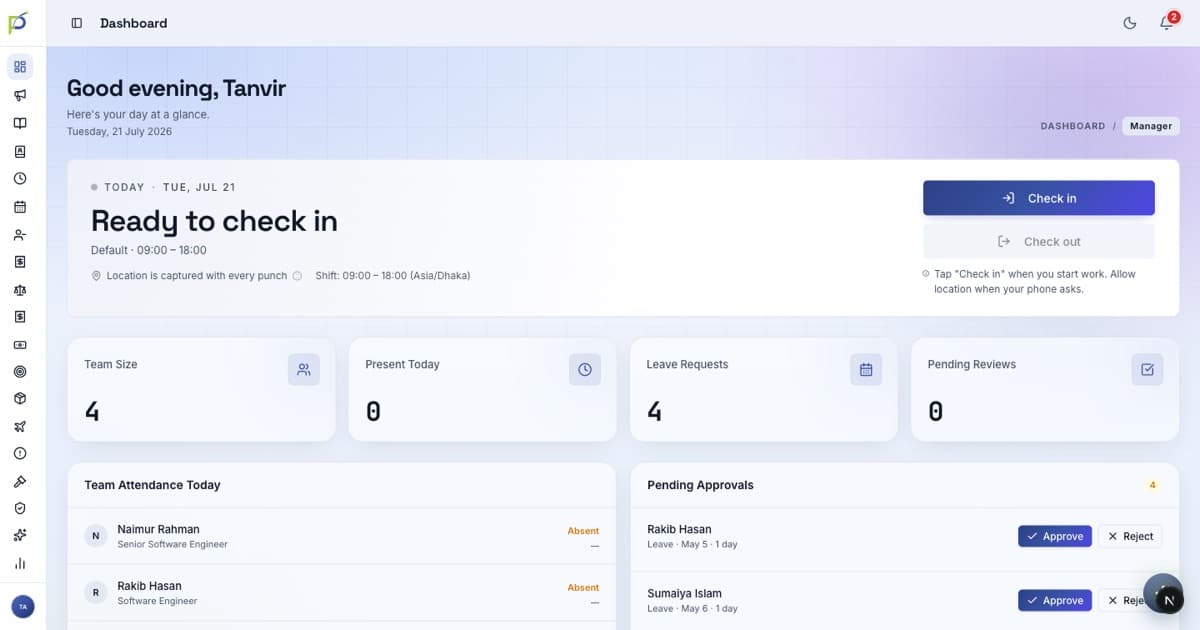
Two-stage approval — you go first
Most requests need two sign-offs: you (the reporting manager) first, then HR finalises. Nothing changes on balances or attendance until the final HR step — your job is the first, fast yes/no.
You can never approve your own request. If a report has no other manager, some types route straight to HR. Once you approve, every later screen shows Endorsed by {you}.
Where you approve — each in its own screen
There is no single "approvals inbox"
You approve inside each area's own page. /inbox is only notifications; /approvals/audit-log is read-only history — neither is your work queue.
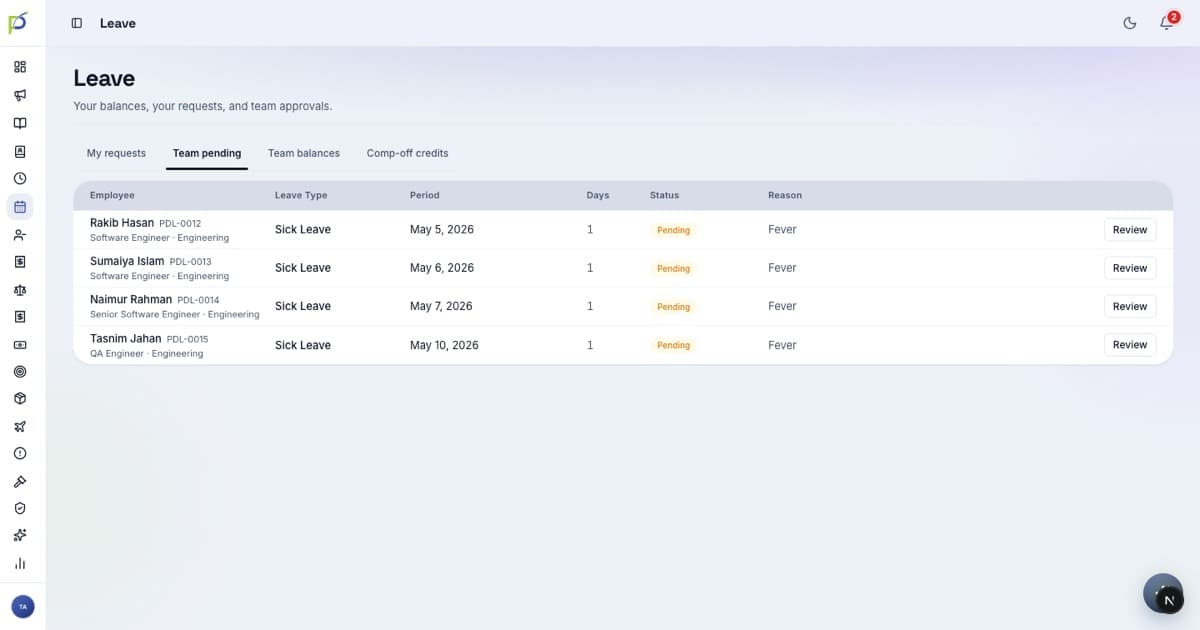
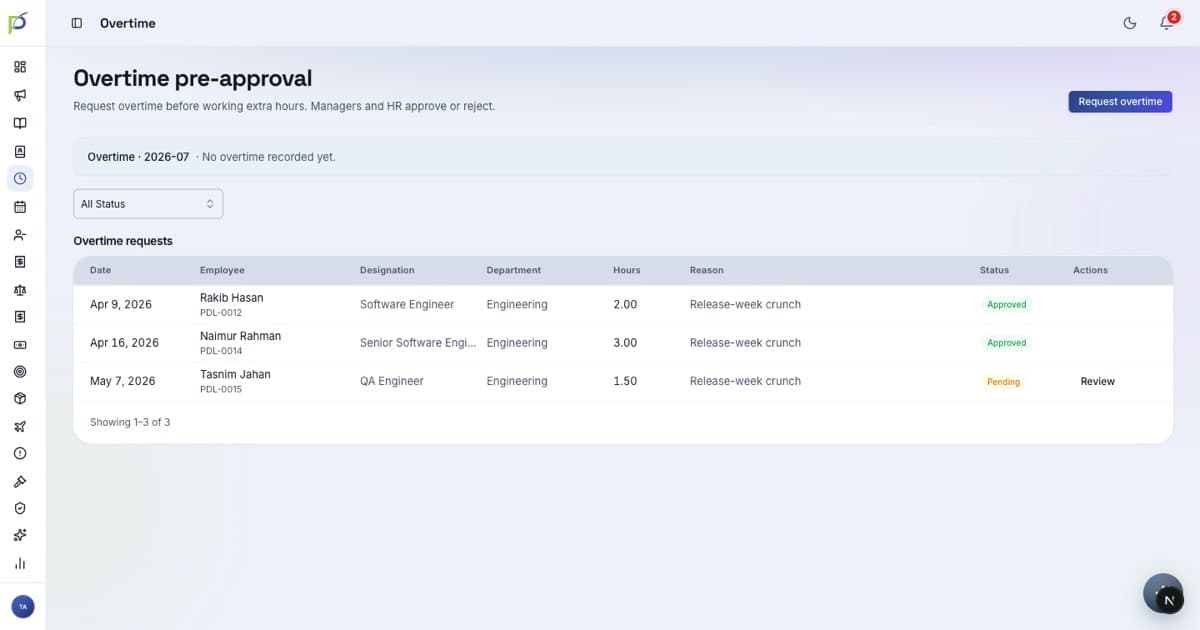
| Request | Go to | Action |
|---|---|---|
| Leave | /leave → Team pending | Approve / Reject |
| Work from home | /attendance/wfh | Approve / Reject |
| Overtime | /attendance/overtime | Approve / Reject |
| Regularization | /attendance/regularization | Approve · Bulk approve |
| Expenses | /expenses | Review team claims |
Your team, day to day
Team balances
See each report's remaining leave before you approve — on the Team balances tab of Leave.
Performance
/performance — your team's reviews, goals and PIPs.
Delegation
Going away? /delegations hands your approvals to someone else temporarily.
Before launch day
Do one practice Approve on a test leave request so the flow is familiar. On day one, check your queues each morning — your team can't get leave or overtime confirmed until you act.