Employee guide
Attendance, leave and payslips in one place — on your phone or computer, in English or বাংলা. Every screen and label below is exactly what you'll see.
- Sign in
- mypaylio.com/signin
- Works on
- phone + computer
- Language
- English / বাংলা
Getting in & finishing onboarding
Go to mypaylio.com/signin, enter your email and the temporary password HR sent you, and tap Sign in.
Your very first login is a setup wizard — not the dashboard
Before you can use anything, Paylio walks you through 5 quick steps and then HR checks and approves your details. You'll see Under Review until they do — that's normal. Once approved, everything opens up.
- 01Set your password পাসওয়ার্ড সেট করুনPick a new password (8+ characters) and confirm it. Button: Set Password
- 02Your profile আপনার প্রোফাইলPhone, date of birth, gender, marital status, present address, NID number, and an emergency contact. TIN is optional. Then Save & Continue
- 03Bank account ব্যাংক অ্যাকাউন্টBank name, account number, holder, branch — this is where your salary is paid. Some fields auto-fill from the bank directory.
- 04Documents ডকুমেন্টUpload the documents HR requested (PDF / JPG / PNG, up to 10 MB each).
- 05Review & submit পর্যালোচনা ও জমাCheck each section, then Submit for Review. When HR approves, tap Go to Dashboard — you're in.
🔒 Your data is encrypted and only your HR team can see it. আপনার তথ্য এনক্রিপ্ট করা এবং শুধু আপনার এইচআর দল দেখতে পারে।
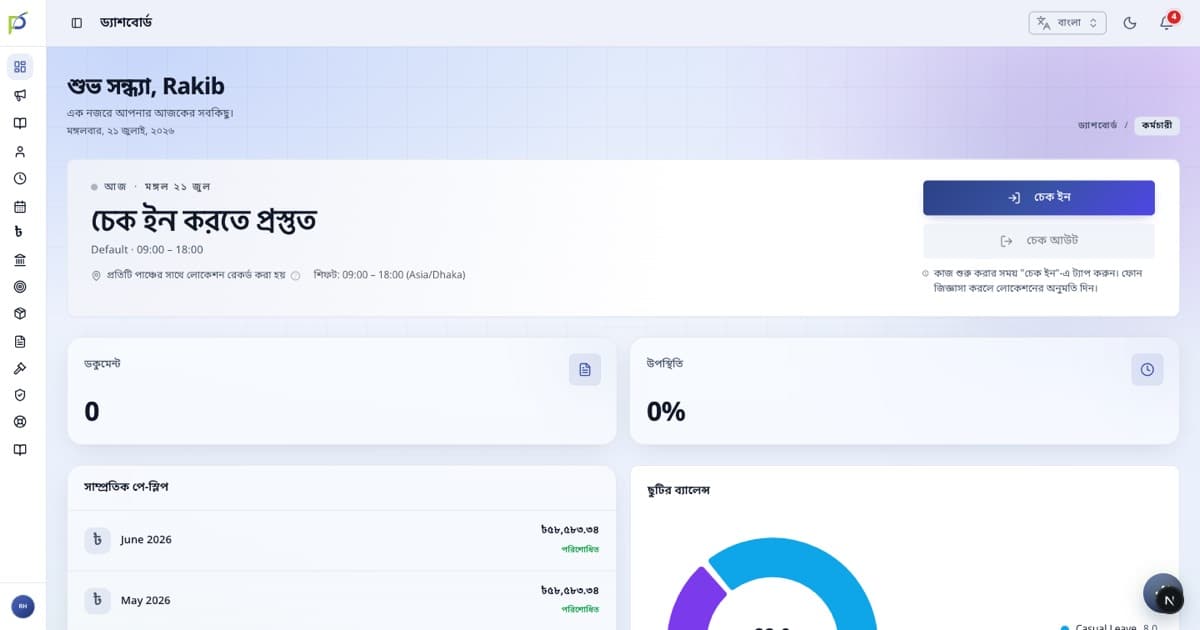
Your home screen & checking in
After you sign in you land on the Dashboard — your day at a glance, with the attendance card front and centre.
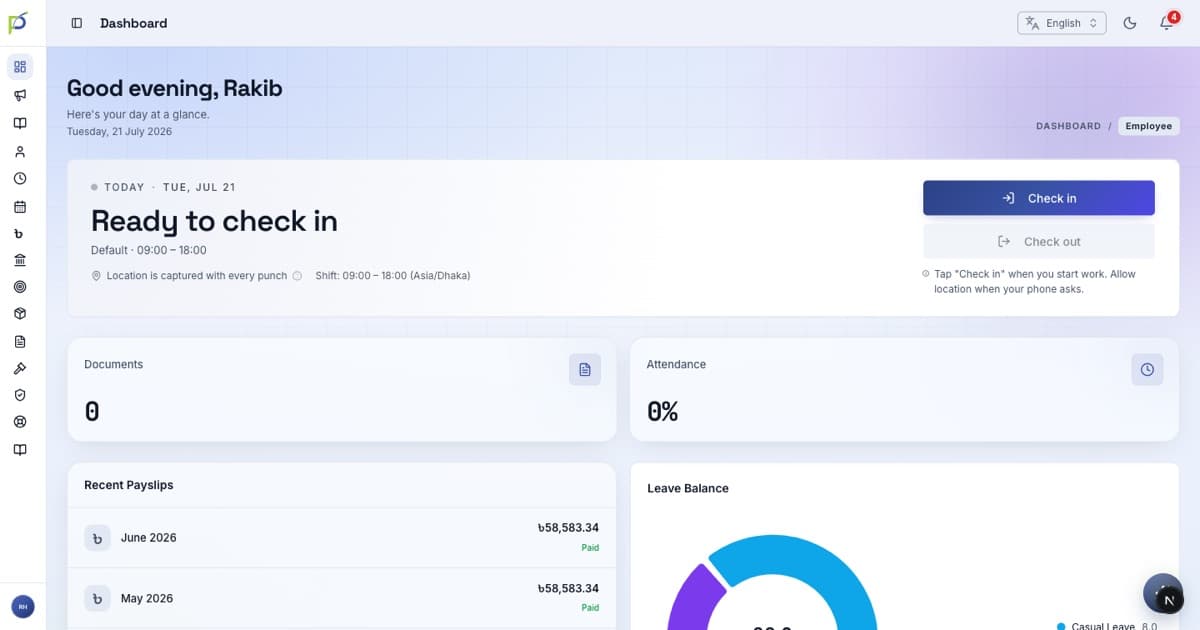
Every punch records your location, so allow location access when your phone asks. On weekends, holidays or approved leave the buttons are disabled with a note explaining why.
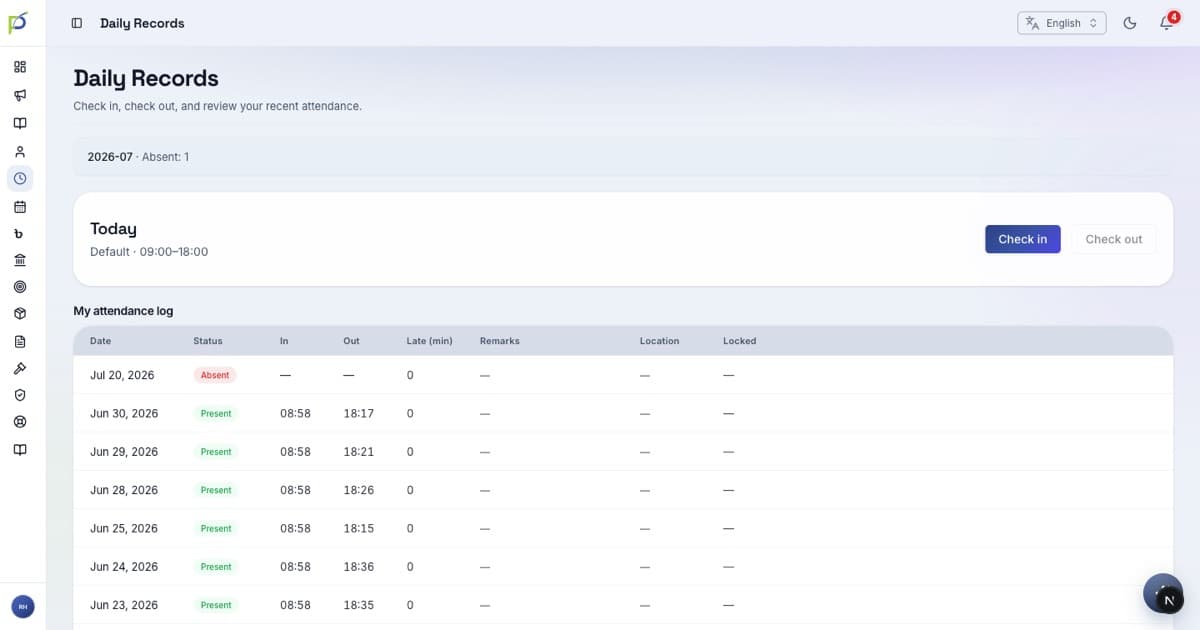
One habit to remember
Check in every morning. That single tap is all most days need — and it's how your attendance, overtime and leave stay correct.
Applying for leave
Open /leave from the menu, then tap Apply for leave ছুটির জন্য আবেদন.
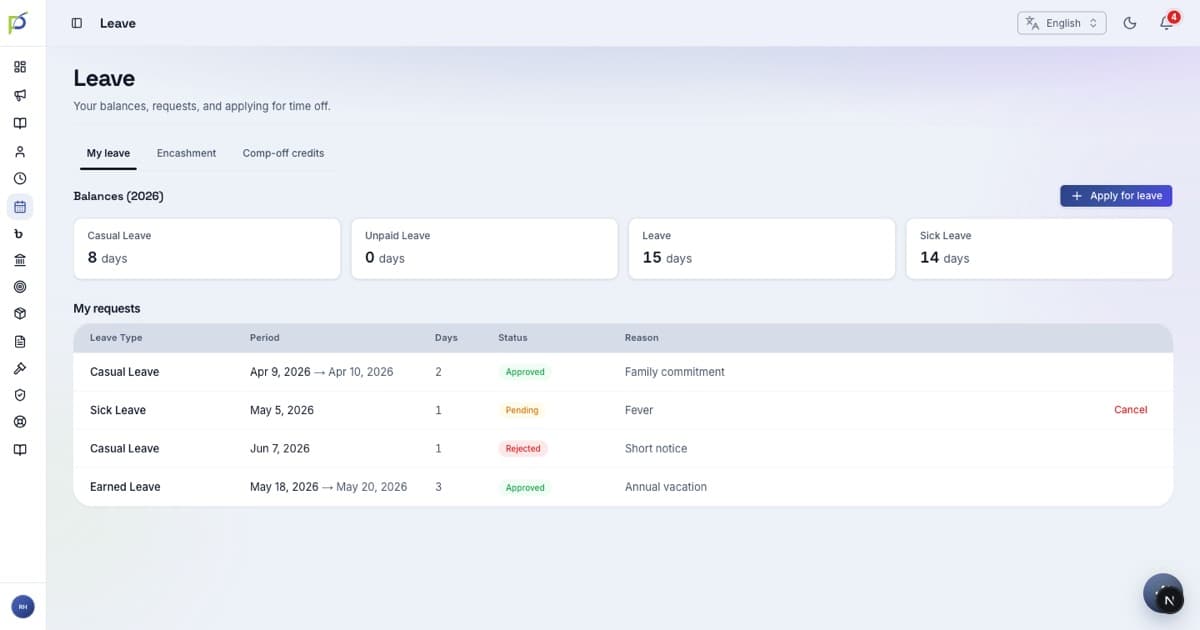
Your request then shows as Pending manager approval. It goes to your manager first, then HR — you'll be notified when it's approved. You can withdraw a request while it's still pending.
The Leave area also has a Calendar and Public holidays. Related requests — WFH, Overtime and Regularization (fixing a missed punch) — live under Attendance and follow the same approval flow.
Payslips, tax & finance
Menu Payroll → My payslips (or the Payslips tab on your phone). Open a payslip to see the full breakdown and download it.
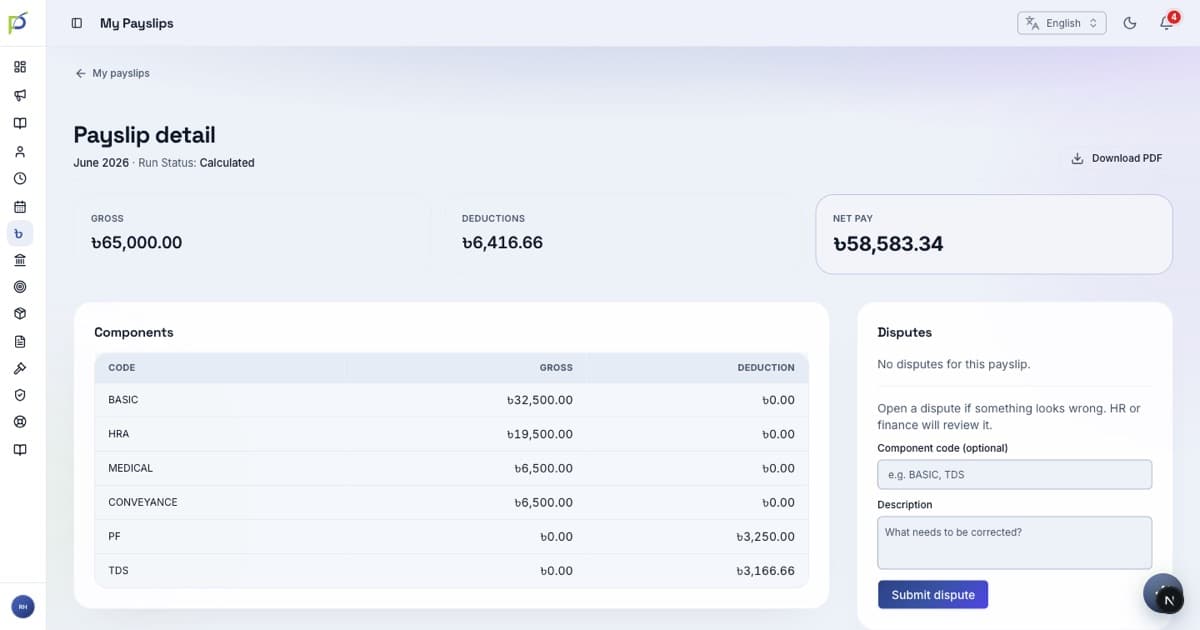
Tax
/tax — submit your yearly tax declarations and see your individual tax breakdown.
Expenses & loans
/expenses and /loans — claim reimbursements and request/track loans.
Bank & F&F
/finance/bank-accounts for your salary account; Full & Final for exit settlements.
Everything else you can do
These are all in your sidebar (and the ⋯ menu on mobile). You only need them now and then.
| Area | What it's for | Where |
|---|---|---|
| My Profile | Your details, and the company Directory / org chart | /profile · /directory |
| Benefits | Your enrolments and available benefits | /benefits |
| Performance | Your goals, reviews and PIPs | /performance |
| Assets & travel | Company assets assigned to you, and travel requests | /assets · /travel |
| Documents | Document library + request letters (salary certificate, NOC…) | /document |
| Cases | Raise a grievance or view disciplinary history (private) | /grievances |
| Learning | Courses and learning paths assigned to you | /learning |
| Support & Glossary | Get help, and look up any term you don't recognise | /support · /glossary |
On your phone
Open mypaylio.com in your browser — there's no app to install. Use the bottom tabs: Home · Attendance · Leave · Payslips · Profile. Allow location and notifications when asked.
Stuck?
Ask your floor's Paylio champion or the support group first. সমস্যা হলে আপনার চ্যাম্পিয়ন বা সাপোর্ট গ্রুপে জিজ্ঞাসা করুন।